

Fix DNS Issues on Mobile Hotspots (Linux, Windows, macOS)
App works on Wi-Fi but fails on mobile hotspot? This guide explains DNS issues and shows how to fix them across Linux, Windows, and macOS.
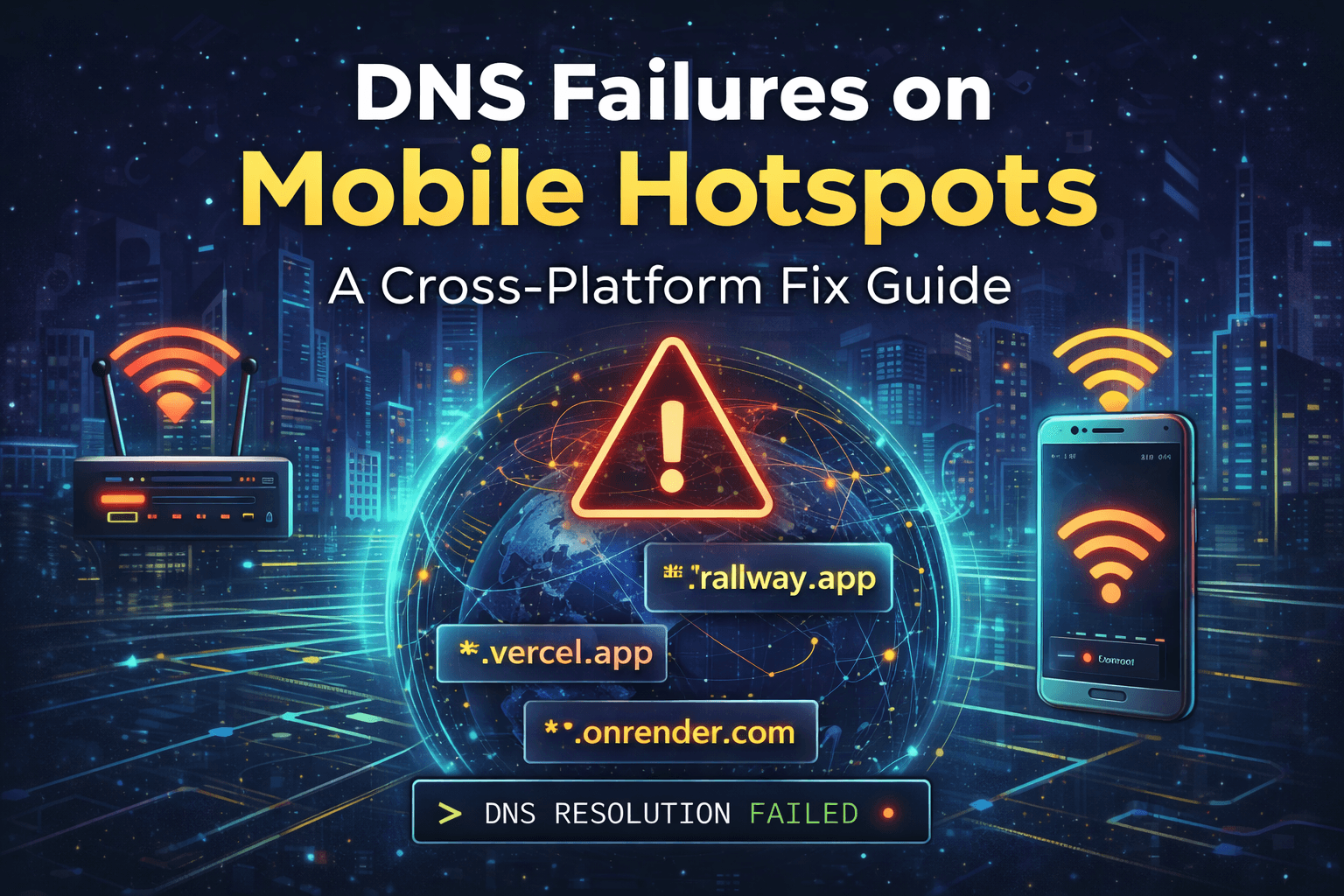
The Hotspot Trap: Why Your App Works on Wi-Fi But Breaks on Mobile Data
TL;DR: If your deployed app loads fine on your home network but throws a "Server Not Found" when you switch to a mobile hotspot, your carrier's DNS resolver is likely the culprit — not your code. Diagnosis takes under a minute. Fix takes under five. Switch to Cloudflare (1.1.1.1) or Google (8.8.8.8). This post walks you through it.
The War Story
It was 11:30 PM. The deployment was done. Railway showed green. The environment variables were correct. The build logs were clean.
I opened my browser on my laptop — connected to my home fiber — and the app loaded perfectly. Smooth, fast, exactly as expected.
Then I did what every developer does before calling it a night: I grabbed my phone to do a quick sanity check over mobile data.
Connecting...
Connecting...
Server Not Found.
The next 45 minutes were a spiral. I re-checked the Railway dashboard. I re-read the .env file. I redeployed. I cleared browser cache. I checked if the domain was propagated. Everything pointed to "it should be working."
It was working. Just not for me. Not on that network.
The bug wasn't in my code. It wasn't on my server. It was sitting quietly inside my mobile carrier's DNS resolver — and it had been silently breaking my app for anyone connecting through that network.
What's Actually Happening: The DNS Resolution Path
When you type a URL into your browser, your device has no idea where that server physically lives. Before it can make a single HTTP request, it has to ask a question: "What's the IP address for this domain?"
That question goes to a DNS Recursive Resolver — a server whose job is to translate human-readable domain names into IP addresses. By default, when you connect to a mobile hotspot, your device inherits whatever DNS server your carrier provides.
This is where the trap is set.
Unlike major ISPs or public DNS providers that run high-capacity, standards-compliant resolvers, mobile carriers optimize their DNS infrastructure for cost and control — not developer reliability. This creates three specific failure modes:
1. Wildcard Resolution Failure Modern cloud platforms like Railway, Render, and Vercel use wildcard DNS records (e.g., *.railway.app) to route traffic to your specific deployment. Some carrier DNS servers are simply not configured to handle these nested subdomain patterns correctly. The result is a flat NXDOMAIN — "this domain does not exist" — even though it very much does.
2. Aggressive Caching Beyond TTL Every DNS record carries a TTL (Time To Live) value — an instruction that says "cache this for X seconds, then ask again." Carriers routinely ignore this and cache records far longer than specified. If your app's IP address changed during a recent deployment (which it often does on cloud platforms), your carrier might be routing traffic to a ghost — an old, decommissioned IP.
3. Content Filtering and Pattern Matching Some carriers run DNS-level "security" filters that flag domain patterns associated with developer tooling and cloud platforms as unverified or suspicious. Your perfectly legitimate your-app.up.railway.app gets silently blocked by a filter written to catch something else entirely.
Diagnosing It: Proving DNS Is the Problem
Don't guess. Prove it. Open your terminal and run two commands.
Step 1 — Query your current (carrier) DNS:
bash
nslookup your-app.up.railway.app
```

If you see something like this, your carrier is failing the resolution:
```
** server can't find your-app.up.railway.app: NXDOMAIN
Step 2 — Query a public DNS resolver as the control group:
bash
nslookup your-app.up.railway.app 8.8.8.8
```

If *this* returns a valid IP address:
```
Name:    your-app.up.railway.app
Address: 66.33.22.64
Then the diagnosis is confirmed. The internet knows exactly where your app is. Your carrier doesn't — or won't tell you.
You can also use dig if you prefer its output format:
bash
# Carrier DNS
dig your-app.up.railway.app

# Force Google DNS
dig your-app.up.railway.app @8.8.8.8
The Fix: Switch to a Public DNS Resolver
The solution is straightforward: tell your operating system to stop asking the carrier and start asking a more reliable resolver.
Recommended Public DNS Providers
Provider | Primary DNS | Secondary DNS | Best For |
|---|---|---|---|
Cloudflare |
|
| Fastest response times + privacy |
|
| Maximum global reliability | |
Quad9 |
|
| Security + malware blocking |
Cloudflare (1.1.1.1) is the recommended default for developers — it consistently benchmarks as the fastest resolver globally and has a strong privacy stance (no query logging sold to advertisers).
Windows 11 / 10
Open Settings → Network & internet → Wi-Fi
Click on your hotspot connection name, then click Properties
Scroll to DNS server assignment and click Edit
Select Manual, then toggle IPv4 to On
Enter
1.1.1.1in Preferred DNS and1.0.0.1in Alternate DNSClick Save
After saving, flush your DNS cache to immediately clear stale records:
cmd
ipconfig /flushdnsYou should see: "Successfully flushed the DNS Resolver Cache."
macOS (Sequoia / Sonoma / Ventura)
Open System Settings → Network → Wi-Fi
Click Details... next to your active hotspot connection
Select the DNS tab in the left sidebar
Click the + button under DNS Servers and add:
1.1.1.11.0.0.1
Remove any existing carrier DNS entries if present
Click OK, then Apply
To flush the DNS cache on macOS:
bash
sudo dscacheutil -flushcache; sudo killall -HUP mDNSResponderLinux (Ubuntu / Debian with NetworkManager)
The most robust approach on Linux is to use nmcli — this ensures the settings persist across reboots and reconnections, unlike editing /etc/resolv.conf directly (which NetworkManager will overwrite).
bash
# Replace "YourHotspotName" with the exact SSID of your hotspot connection
sudo nmcli connection modify "YourHotspotName" ipv4.dns "1.1.1.1 1.0.0.1"

# Prevent NetworkManager from overwriting your DNS with carrier-provided values
sudo nmcli connection modify "YourHotspotName" ipv4.ignore-auto-dns yes

# Apply the changes immediately
sudo nmcli connection up "YourHotspotName"
To verify the change took effect:
bash
nmcli connection show "YourHotspotName" | grep dnsTo flush the cache:
bash
sudo systemd-resolve --flush-cachesAndroid (on the hotspot device itself)
If you want to fix DNS at the source — on the phone creating the hotspot — Android 9+ supports Private DNS:
Go to Settings → Network & internet → Advanced → Private DNS
Select Private DNS provider hostname
Enter:
one.one.one.one(Cloudflare) ordns.google(Google)Tap Save
This applies encrypted DNS-over-TLS for all connections on the device, including when it's sharing a hotspot.
Why This Matters Beyond the Hotspot
This issue isn't just a local inconvenience. The same carrier DNS problem affects a percentage of your real users. Anyone on a mobile carrier with aggressive filtering or broken wildcard resolution may be hitting the same silent failure — they just see a broken app and leave without reporting it.
Switching to Cloudflare or Google DNS on your development machine ensures you're testing through the same reliable resolution path your users on good resolvers are using. It makes your development environment a more honest simulation of production.
Closing Thought
The most disorienting bugs are the ones that live outside your codebase. You can't console.log your way to a carrier DNS misconfiguration. You can't fix it with a redeploy.
But once you know the failure mode, the diagnosis takes under a minute and the fix takes under five. That 45-minute spiral at 11:30 PM doesn't have to happen to you.
Change your DNS. Flush your cache. Move on.
Have you run into the hotspot trap before? Drop a comment — I'm curious how many developers have lost hours to this before finding the root cause.
Enjoyed this post?
Follow Linux City Stories to get notified of new posts.
Do you intend to write blog posts yourself?
Click hereHave a Question?
Please log in to ask the author directly.
Comments
No comments yet. Be the first to share your thoughts!